Troubleshooting
PlayStation Portal not connecting to your PS5? Fixes from Sony, safest first
PS Portal can't find or reach your PS5? Sony's checklist for Remote Play, Rest Mode, same-account sign-in, Wi-Fi and 5 GHz, restart and reset, and when to contact support.
By ElvisPublished
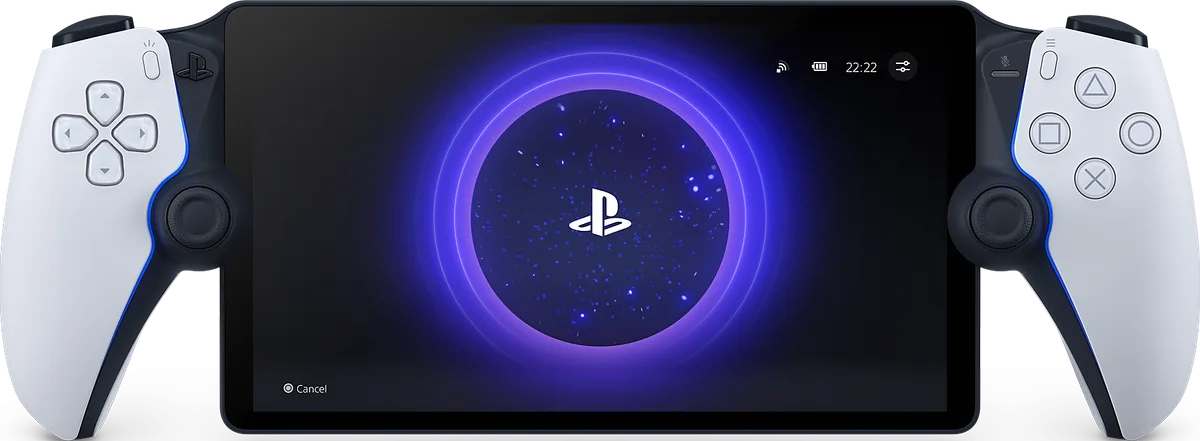
If the PlayStation Portal can’t reach your PS5, check the console settings before the Portal. Sony’s page for a Portal that can’t reach its paired PS5 asks for Remote Play to be enabled, the console to stay reachable in Rest Mode, and the same account on both devices. The order below is ours, from the quickest checks to the ones that erase data: PS5 settings, account, network, restart, reset, then Sony support. The steps come from Sony’s support pages as read on November 13, 2026. They carry no dates or version numbers.
Check the PS5 first
Sony’s page for a Portal that “can’t connect to your paired PS5” lists, among other steps, two console settings on the PS5.
- Go to Settings > System > Remote Play and select Enable Remote Play. Make sure the user who signs in on the Portal is the one Remote Play is switched on for.
- Go to Settings > System > Power Saving > Features Available in Rest Mode. Turn on “Stay connected to the Internet” and “Enable Turning on PS5 from Network.”
The second setting explains the most common version of the problem. If you leave the PS5 in Rest Mode overnight and the Portal can’t find it in the morning, those two options are what let a sleeping console answer. Sony’s Remote Play page says the same thing in other words: the console must be on or in Rest Mode, and Rest Mode connections need both options. A PS5 that is fully powered off can’t be reached at all.
Update the PS5 to the latest system software while you are there. Sony’s Remote Play page lists that as part of setup, along with an internet connection on the console.
Same account on both devices
Sony asks you to confirm that the PS5 and the Portal are signed in with the same account. Kotaku’s January 2025 setup walkthrough gives the same requirement, plus a Wi-Fi connection on the same network as the PS5 during setup. If you share a PS5 with someone who has a separate profile, the profile that enabled Remote Play and the one signed in on the Portal have to line up.
Setup on the Portal itself ends with “Pair a PS5”, according to Kotaku, after you choose your console. If the console never appears in that list, check the account first.
Look at the network
Sony’s troubleshooting targets are 5 Mbps up and down as the baseline and 15 Mbps for the best results. If the link is flaky, its advice is to stop downloads on anything else using the Wi-Fi while you test.
Sony’s first network fix for Remote Play is an Ethernet cable on the PS5. Without one, shorten the Wi-Fi path by bringing both units near the router with nothing in the way. The Remote Play page adds a band for the Portal’s own link, 5 GHz, and says routers that shift devices between 2.4 and 5 GHz on their own (band steering) should have that switched off where possible. It also says that if the PS5 is on Wi-Fi, both devices should be on the same network.
Two checks Sony gives for a Portal that can’t get online at all:
- Open the status page. Sony’s first step is its PlayStation status page.
- Test the Wi-Fi with another device. For Wi-Fi problems, Sony says to contact your internet service provider.
On the Portal, swipe left from the top right of the screen to open the quick menu, then go to Settings > Network > Set Up Internet Connection to look over the Wi-Fi connection. Sony also says to follow the settings your internet provider or network administrator recommends. Sony’s Remote Play page also warns that public Wi-Fi quality is out of your hands.
Connecting from away from home
Sony’s Remote Play page says that if you haven’t signed in for a while, you should connect while you are near the PS5 before trying from elsewhere. It also says the quick menu’s PS5 icon names the console you used last. To switch consoles, open the quick menu, select the PS5 icon and choose the console. A console that is missing from the list may not be ready for Remote Play, and you have to quit an active session before switching.
Restart the Portal
Sony lists updating the Portal to the latest system software before anything else. Restart it from the power menu (hold the button, pick Restart). If the menu won’t respond, keep holding the button until the Portal turns off, wait 30 seconds, then hold it again to boot.
Read the connection quality during a stream
If the Portal connects but the stream is poor, Sony’s page points to the quick menu: Troubleshoot > Show Network Status shows the quality of the connection. Its list for gameplay issues also names Troubleshoot > Restore Licence during a stream, and Settings > Display and Brightness for the picture. Sony’s Remote Play page recommends at least 15 Mbps for a better experience.
Reset, and when to contact Sony
Sony’s page puts the reset after the restart section. A reset returns the Portal to a clean state: you’re logged out of PSN and every stored setting is gone, so expect to set it up again. On the Portal, swipe left from the top right to open the quick menu, then go to Settings > System > System Software > Reset Options and select Reset. Our reading: a Portal reset can’t switch Remote Play on for a PS5 that has it off.
If it still fails after all of the above, Sony says to contact PlayStation Support. If the Portal looks faulty, Sony points to PlayStation Repairs. We found no Sony statement on how a reset affects warranty, so ask support before sending a unit in.
What this guide leaves out
Sony’s two pages list no error codes, and neither does Kotaku’s walkthrough. If you see a numbered error on the Portal, search that exact code on PlayStation’s support site, since a code can point to a narrower cause than the steps above. For a look at what reviewers found about the Portal itself, see the PlayStation Portal page.
Questions
Does the PS5 have to be on for the Portal to connect?
It has to be on or in Rest Mode. Sony's Remote Play page says to turn the console on or put it in Rest Mode before connecting. Rest Mode only works for this if the two Rest Mode network features are enabled in the PS5's Power Saving settings. A console that is fully shut down has no way to answer the Portal.
Do I need a PlayStation Plus subscription to use Remote Play on the Portal?
The pages we read don't make Remote Play conditional on a subscription. Kotaku's setup piece from January 2025 says only cloud streaming from Sony's servers requires PlayStation Plus. Sony's page adds that the cloud streaming settings appear only for adult accounts in supported regions with PlayStation Plus Premium. If your PS5 isn't reachable, cloud streaming is a separate feature and a separate set of conditions.
Should the Portal use the 2.4 GHz or the 5 GHz Wi-Fi band?
Sony's Remote Play page recommends 5 GHz for the Portal and suggests turning off band steering on the router if you can. Its troubleshooting page doesn't name a band. If your router merges both bands under one network name, giving the 5 GHz band its own name makes it easier to pick on the Portal. That last step is our suggestion, not Sony's.
Will resetting the PS Portal fix a connection that fails only to my PS5?
Sony's page warns that a reset logs you out and wipes the Portal's stored data and settings. If the PS5 side is misconfigured, as with Remote Play or the Rest Mode options, a reset of the Portal changes nothing (our reading), so work through the console settings first.
Official sources
- How to troubleshoot issues on your PS Portal · Sony Interactive Entertainment · Manufacturer
- How to use Remote Play on your PS Portal · Sony Interactive Entertainment · Manufacturer
Reviews and reports cited in this guide (1)
- How to set up PS Portal for Remote Play with your PS5 · Kotaku · News · January 9, 2025
Spotted a mistake or a step that no longer works? Tell us and we'll correct it.