How-to
Steam Deck controls: keyboard, right-click, screenshots and every button shortcut
How to open the Steam Deck keyboard, right-click, take and find screenshots, switch to Desktop Mode, force a restart and unhide games, with the Steam button shortcut list.
By ElvisPublished
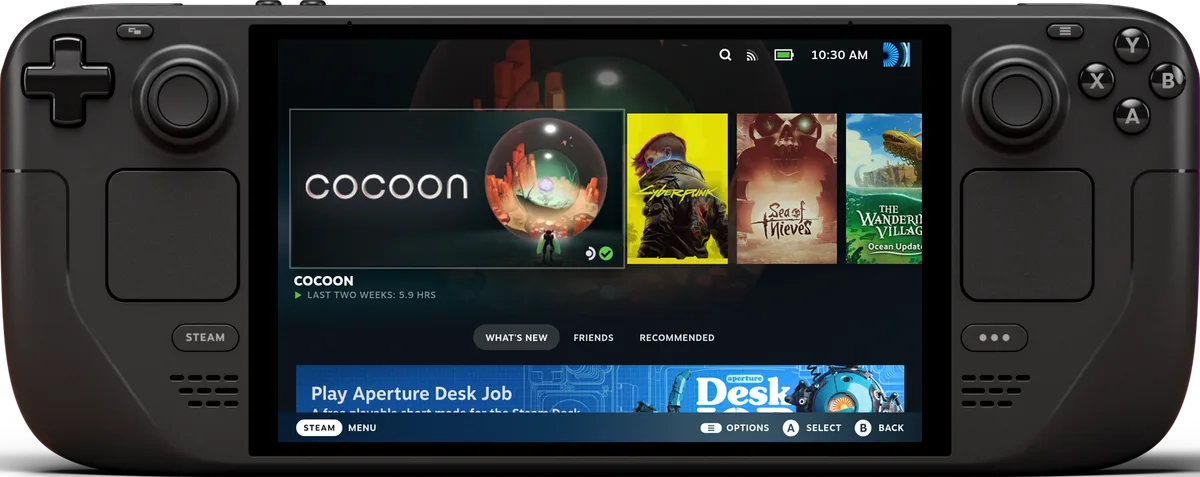
Press Steam + X for the on-screen keyboard, Steam + R1 for a screenshot, and hold the Steam button to see every shortcut your Deck supports. Valve’s help pages give the first and last of those directly, and the rest of the list below comes from How-To Geek’s 2023 shortcut guide, so confirm any chord against the on-device list. Valve’s pages name no SteamOS version for these controls, and menus can shift between updates. The steps apply to the Steam Deck OLED and Steam Deck LCD alike.
How do I open the keyboard on a Steam Deck?
Press the Steam button and X together. Valve’s help page uses this as its example of a button shortcut, and its desktop FAQ says it works on the desktop too, as long as Steam is running. GamingOnLinux’s 2022 tips list also gives Steam + X for opening the keyboard anywhere.
- Tap a text field, or click into it with the trackpad, so the Deck knows where the text goes.
- Press Steam + X. The keyboard slides up.
- Type with the touchscreen, or point at keys with the trackpads and click.
In Desktop Mode, Valve documents Steam + X; How-To Geek also lists a plain X press. Valve admits the desktop keyboard is still being improved and some situations may need a physical keyboard and mouse. If the keyboard doesn’t appear, try these in order:
- Update first, from Steam > Settings > System > Software Updates, the path Valve gives for system updates.
- Close any other overlay or input tool that is running.
- Restart through Steam > Power > Restart.
- Plug in a USB keyboard.
How do I right-click on a Steam Deck?
In Desktop Mode, press the left trigger (L2). Valve’s help page sets out the desktop layout: right trackpad moves the pointer, R2 left-clicks and L2 right-clicks. Valve’s desktop FAQ adds that a press on the right trackpad is the primary click and a press on the left trackpad is the secondary click.
In Game Mode the triggers are not mouse buttons, so hold the Steam button first. How-To Geek lists Steam + L2 as right-click and Steam + R2 as left-click. Holding Steam while you slide the right trackpad moves a cursor, and GamingOnLinux says the right stick does the same.
How do I take and find a screenshot?
Press Steam + R1, which GamingOnLinux also lists. Pi My Life Up says a “Screenshot Taken” notice appears in the bottom-right corner, and that missing it usually means the buttons weren’t pressed at the same moment.
To find the shots in Game Mode, press the Steam button and choose Media, per the same guide. It says that page holds the screenshots taken on your Deck and on your Steam account, and that Game Mode captures save to your Steam screenshot library automatically. The same guide notes that Steam + R1 does not work in Desktop Mode.
To share one from Desktop Mode:
- Open the Steam client from the desktop icon.
- Open the View menu and choose Screenshots.
- Pick a game with the selector at the top, select the image, and press Upload to post it to your Steam profile.
- Use Show on Disk in the same view to reach the file itself.
Pi My Life Up doesn’t describe an upload from Game Mode. The Spectacle route for captures outside Steam is in the FAQ below.
What are all the Steam button shortcuts?
Hold the Steam button and the Deck lists them for you, which Valve recommends and How-To Geek confirms. Here is How-To Geek’s list for Game Mode, published April 2023, plus the Desktop Mode defaults it gives.
| Shortcut | What it does |
|---|---|
| Steam + X | Opens the keyboard |
| Steam + R1 | Takes a screenshot |
| Steam + L1 | Toggles the magnifier |
| Steam + hold B | Force-quits the running game (GamingOnLinux lists Steam + B) |
| Steam + L2 | Right-click |
| Steam + R2 | Left-click |
| Steam + right stick or right trackpad | Moves the mouse pointer |
| Steam + right trackpad press | Left-click |
| Steam + left stick up or down | Raises or lowers brightness |
| Steam + D-pad right | Enter |
| Steam + D-pad down | Tab |
| Steam + D-pad left | Escape |
Desktop Mode needs no Steam button. How-To Geek maps L1 to Left Ctrl, R1 to Left Alt, Y to Space, A to Return, B to Escape, Start to Escape and Select to Tab. The back paddles become Left Shift, the Windows (Super) key, Page Up and Page Down. The left trackpad scrolls, and pressing it acts as the middle mouse button.
Brightness also lives in the Quick Access Menu, the button with three dots on the right. The performance settings guide covers the other controls in that menu.
How do I switch to Desktop Mode and back?
Open the Steam menu, select Power, then Switch to Desktop. Valve gives that path in both its help guide and its desktop FAQ.
To return, select Return to Gaming Mode on the desktop. Valve’s FAQ says you can also use the system menus to Log Off. Desktop Mode is still part of SteamOS, so Valve warns that apps need to run on an Arch Linux base.
How do I turn on, restart or force-restart a Steam Deck?
Press the power button. Valve notes an OLED can be turned on this way from the box with a 7-second hold, while a new LCD needs a short charge first. For a normal restart or shutdown, use Steam > Power.
If the Deck is on but frozen, Valve says to hold the power button for 4 seconds on the LCD or 7 on the OLED to force a restart. If it stays unresponsive, hold it for 10 seconds on the LCD or 16 on the OLED. Valve’s guide says a Deck that still won’t respond after that may have an OS problem.
How do I see hidden games?
Valve’s pages don’t cover this, and menus can move between SteamOS updates, so check the route against your own. It follows Seeking Tech’s guide, and a Steam Community poster describes the same Settings > Home entry for managing hidden items.
- Press the Steam button and open Settings.
- Go to Home.
- Next to the entry saying how many games are hidden, select Manage.
- Highlight a game, open its menu with the three-line button, choose Hidden, then Remove from Hidden.
To hide a game, Seeking Tech says to open the Library, highlight it, press the menu button, and choose Manage, then Hide this game.
Questions
Why won't my new Steam Deck turn on?
Valve says Steam Deck LCD units ship in a battery-saving mode, so they need a short charge from the supplied power supply before they will start. The OLED can be switched on out of the box by holding the power button for 7 seconds. If a used Deck won't start, Valve points to the LED beside the charging port: a lit LED means it is charging, and a flashing LED after you press power means the battery is empty and needs at least 15 minutes on the charger.
Can I change what the Steam button shortcuts do?
Valve doesn't publish a way to remap the Game Mode chords. For Desktop Mode, How-To Geek says Steam > Settings > Controller > Desktop Configuration lets you rebind every button to any keyboard or mouse input.
How do I take a screenshot in Desktop Mode if Steam isn't running?
Pi My Life Up describes the KDE tool Spectacle, found in the Start menu under Utilities. It captures the whole desktop by default, then lets you copy the image to the clipboard or save it to a folder you choose.
Can someone else see my hidden games on a shared Deck?
Possibly. Owners in a Steam Community thread, with reports running from July 2024 to October 2025, say hidden games show up as soon as the Game Mode search bar is opened, even before anything is typed. Hiding keeps a title out of the library list, but it isn't a lock.
Official sources
- Steam Deck - Basic Use & Troubleshooting Guide · Valve · Manufacturer
- Steam Deck and Steam Machine Desktop: FAQ · Valve · Manufacturer
Reviews and reports cited in this guide (5)
- Top quick Steam Deck tips and tricks · GamingOnLinux · News · August 5, 2022
- Steam Deck Shortcuts: The Ultimate Guide · How-To Geek · News · April 11, 2023
- Taking a Screenshot on the Steam Deck · Pi My Life Up · News · May 26, 2023
- How to hide and unhide games on the Steam Deck · Seeking Tech · News
- Steam Deck discussion: hidden games show in Game Mode search · Steam Community · Community · July 11, 2024
Spotted a mistake or a step that no longer works? Tell us and we'll correct it.