How-to
How to set up EmuDeck on Steam Deck, step by step
EmuDeck installs emulators on a Steam Deck and sorts out folders and settings. The install steps, where BIOS and ROM files go, Steam ROM Manager and updates, per EmuDeck's wiki.
By ElvisPublished
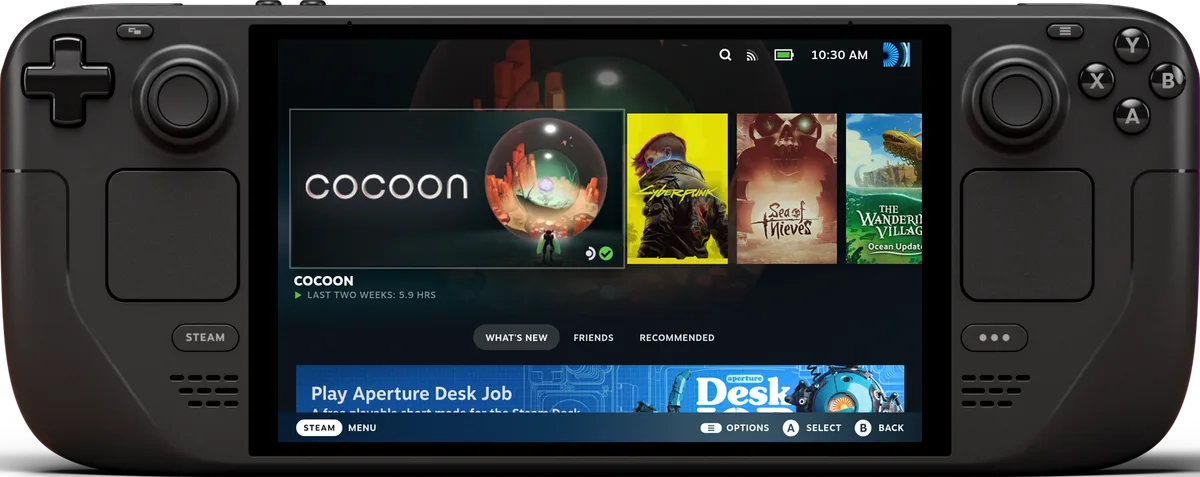
EmuDeck is an installer and manager that sets up emulators on a Steam Deck, creates an Emulation folder for your files and applies settings tuned for the Deck, according to its wiki. Setup comes down to five jobs: switch to Desktop Mode, run the installer, copy in your own game and BIOS files, add them to Steam with Steam ROM Manager, and return to Game Mode. This guide follows the EmuDeck wiki’s SteamOS pages as we read them on November 5, 2026; some of those pages show 2025 dates. We haven’t run the installer ourselves, so each step is described the way the wiki describes it, and the wiki doesn’t print a version number for the steps.
What EmuDeck does
Per the wiki, EmuDeck installs emulators from the Discover software store or from the emulators’ official repositories. It also creates an Emulation folder with subfolders for BIOS files and ROMs, adds Steam Input profiles where a program needs them for hotkeys, and applies emulator settings optimized for the Deck. The wiki has separate pages for SteamOS, Windows, Linux and Android, and describes the Windows version as still in development. This guide covers SteamOS on a Steam Deck only.
Before you start
- Your own files. EmuDeck ships no ROMs or BIOS files. The wiki says BIOS files must come from your own console, and the Cheat Sheet calls other routes piracy that can’t be discussed there. Use game dumps you made yourself from games you own. We don’t link to or recommend any download source.
- SD card format. If ROMs will live on a microSD card, the wiki says to format it as ext4 or btrfs in Game Mode first, because EmuDeck requires one of the two. Formatting erases the card.
- A keyboard and mouse help. Desktop Mode works with the trackpads and touchscreen, but the Decky Loader README, which covers the same Desktop Mode routine, recommends a mouse and keyboard if you have them.
Install EmuDeck in Desktop Mode
- Press the Steam button, open Power and choose Switch to Desktop.
- Open the EmuDeck website and download the EmuDeck installer.
- Copy the installer to the desktop and run it.
- Expect to be asked whether ROMs, BIOS files and saves go on the SD card or the internal SSD; the FAQ describes that choice. It says emulators and tools always install to the SSD, whichever you pick.
- To customize which emulators you get, pick Custom Mode in the installer, as the wiki’s General Usage section describes. We found no wiki page that walks through the installer’s own screens, so what you see there may differ from this list.
If the installer stalls or fails, the troubleshooting page suggests setting the IPv4 DNS to 1.1.1.1 and disabling IPv6 in the network settings. It also says a 2.4 GHz Wi-Fi network may help.
Where files go
The installer creates the Emulation folder. Per the wiki:
- ROMs go into a folder per system under
Emulation/roms. The Cheat Sheet lists the folder name for each system, for examplepsx,snesandgba, along with the file types each accepts. The troubleshooting page adds that.zipand.7zaren’t always accepted, so check the Cheat Sheet for each system. - BIOS files go directly in
Emulation/bios, with no subfolders unless the Cheat Sheet asks for one. Its Dreamcast entry, for example, wants adcfolder inside. - On an SD card, the same folders sit on the card, for example at
/run/media/<card name>/Emulation/roms. The card can show up asmmcblk0p1. If the path isn’t writable, the troubleshooting page says to remove spaces from the card’s name using KDE Partition Manager.
The Cheat Sheet’s BIOS column says whether a system needs BIOS files. “Not Required” means the system runs without one, and “Optional” means BIOS adds extras such as console intros while games still run.
Add games to Steam with Steam ROM Manager
Steam ROM Manager (SRM) is what puts your games into the Steam library so they launch from Game Mode. From the wiki:
- Put your ROMs in the right system folders first.
- Open SRM from the EmuDeck app, from the Applications Launcher (the Steam icon in the bottom left of the taskbar), or from
Emulation/tools/srm/Steam-ROM-Manager.AppImage. Opening it from the app or the launcher closes Steam and switches the controls to Lizard Mode. If you start SRM another way, close Steam yourself. - Switch on the parsers for the systems you want. Active parsers show a green toggle. The wiki recommends at least the Emulators parser and the ES-DE parser, and warns against enabling two parsers for the same system, since that creates duplicate entries.
- Click Preview, then Parse, and wait for the artwork to download.
- Click Save apps to Steam. It can take a moment, and the Event Log tab shows when it’s done.
- The games land in the non-Steam section of your library. The install page’s last step is to close SRM and click Return to Game Mode on the desktop.
You can also use EmulationStation-DE (ES-DE) as a front end by enabling its parser, adding some ROMs to Steam directly and managing the rest from ES-DE.
If a game doesn’t show up, the troubleshooting page says to remove it from SRM’s Exceptions list and save again. Files with special characters in the name may not launch; rename them and run SRM again. Missing artwork or axios errors, it says, usually clear after 24 to 48 hours.
Controls and settings
For emulators with a built-in profile, the FAQ lists Cemu, Citra, DuckStation, melonDS, mGBA, PPSSPP and RMG. Change a layout in Game Mode by opening the game, selecting the controller icon and choosing from the dropdown. When an emulator has no profile, the FAQ says to use “Gamepad with Joystick Trackpad”. Cemu and Citra need their profile to switch screens.
Two optional add-ons come up on the wiki. Power Tools is a Decky Loader plugin for power settings in Game Mode, installed through the EmuDeck app; Application 101 says installing it also installs Decky Loader, and recommends turning SMT off and setting Manual GPU Clock Control to 1200. DeckyControls shows EmuDeck’s hotkeys in Game Mode, and the page says to restart the Deck after installing it. Decky Loader’s own README describes it as a community plugin launcher for the Steam Deck.
For general tuning outside emulators, see our guide to Steam Deck performance settings.
Update EmuDeck and its emulators
Open the EmuDeck icon on the desktop to update the app. The wiki’s updating page then splits the rest by type:
- Configurations: in Manage Emulators, click Update all Configurations, or run an Easy Reset or Custom Reset. The wiki’s home page says to reset general emulator configurations on each update to get the latest optimizations, and to put personal tweaks in per-game settings, which updates don’t overwrite. The updating page calls the reset an “Easy Reset” and Application 101 calls it “Quick Reset”; they appear to be the same option, but the wiki doesn’t say so.
- New emulators: install from Manage Emulators, then run a Custom Reset. An Easy Reset won’t include new emulators.
- Flatpak emulators: update through Discover, or through Manage Emulators, Update your Emulators & Tools, Update Flatpaks. Resets don’t update Flatpaks.
- AppImages and binaries: Manage Emulators, Update your Emulators & Tools, Update AppImages and Binaries.
- RetroArch cores: in RetroArch, Main Menu, Online Updater, Update Installed Cores.
The wiki also tells you to update system libraries through Discover, because outdated ones can make Flatpak emulators stop working.
When something breaks
The troubleshooting page starts with a real restart, since switching modes isn’t one. For poor performance or audio, it says to turn off the frame rate limit and set the refresh rate to 60 in the Quick Access Menu’s Advanced View. If controls don’t respond in Desktop Mode, hold Start for three seconds to switch to gamepad controls. A misbehaving emulator can be reset from Manage Emulators. Don’t enable Proton for emulated games, and if a Gamescope Flatpak shows up in flatpak list, the wiki says to uninstall it because it can cause crashes. For support, the EmuDeck app has a Fetch Log File option, and the logs sit in $HOME/emudeck/logs.
The wiki’s known-issues page for SteamOS lists entries dated 2023 (PCSX2, DuckStation, RetroArch, RPCS3 and gyro), each with an update-based fix. For trouble after the latest EmuDeck update, the wiki’s banner links a hotfix post; read it before reinstalling.
What we couldn’t confirm
No source we opened measures emulator performance on the Deck, so this guide makes no claims about which systems run well. We found no independent walkthrough from the outlets we follow that we could check against the wiki. And the wiki pages we read don’t walk through EmuDeck’s installer screens, so that part is left out rather than guessed. Application 101 does list an Uninstall option, but warns against using it to troubleshoot.
Questions
Does EmuDeck come with games or BIOS files?
No. The wiki says ROMs, BIOS files and other copyrighted material are not included, and that asking for help finding them is not allowed. BIOS files should come from a console you own; the Cheat Sheet says various emulator websites have guides on how to dump them.
Where does EmuDeck put its files if I use an SD card?
In an Emulation folder on the card, for example /run/media/<card name>/Emulation/roms. Emulators and tools themselves always install to the internal SSD, according to the wiki's FAQ.
Is going back to Game Mode enough to apply changes?
Not when something is misbehaving. The wiki's troubleshooting page says switching between Desktop Mode and Game Mode doesn't count as a restart, and Application 101 says the same about the DeckyControls add-on.
How do I remove EmuDeck?
The EmuDeck Application 101 page lists an Uninstall option that removes EmuDeck from the system entirely, and says it shouldn't be used to troubleshoot EmuDeck. Emulators and tools can also be uninstalled from Manage Emulators. The FAQ covers removing Citra and Yuzu by hand.
Official sources
- EmuDeck Wiki: home and General Usage · EmuDeck · Documentation
- EmuDeck Wiki: EmuDeck for SteamOS (install) · EmuDeck · Documentation
- EmuDeck Wiki: Steam ROM Manager on SteamOS · EmuDeck · Documentation
- EmuDeck Wiki: BIOS and ROMs Cheat Sheet · EmuDeck · Documentation
- EmuDeck Wiki: Frequently asked questions (SteamOS) · EmuDeck · Documentation
- EmuDeck Wiki: EmuDeck Application 101 (SteamOS) · EmuDeck · Documentation
Reviews and reports cited in this guide (4)
- EmuDeck Wiki: Updating on SteamOS · EmuDeck · Documentation
- EmuDeck Wiki: Troubleshooting (SteamOS) · EmuDeck · Documentation
- EmuDeck Wiki: Known issues (SteamOS) · EmuDeck · Documentation
- Decky Loader README · GitHub (SteamDeckHomebrew) · Documentation
Spotted a mistake or a step that no longer works? Tell us and we'll correct it.