Troubleshooting
How to restart, hard reset and factory reset a Steam Deck (and what each one deletes)
Restart, force shutdown, rollback, Factory Reset and the USB recovery image on Steam Deck LCD and OLED, ordered safest first, with what each step deletes, per Valve.
By ElvisPublished
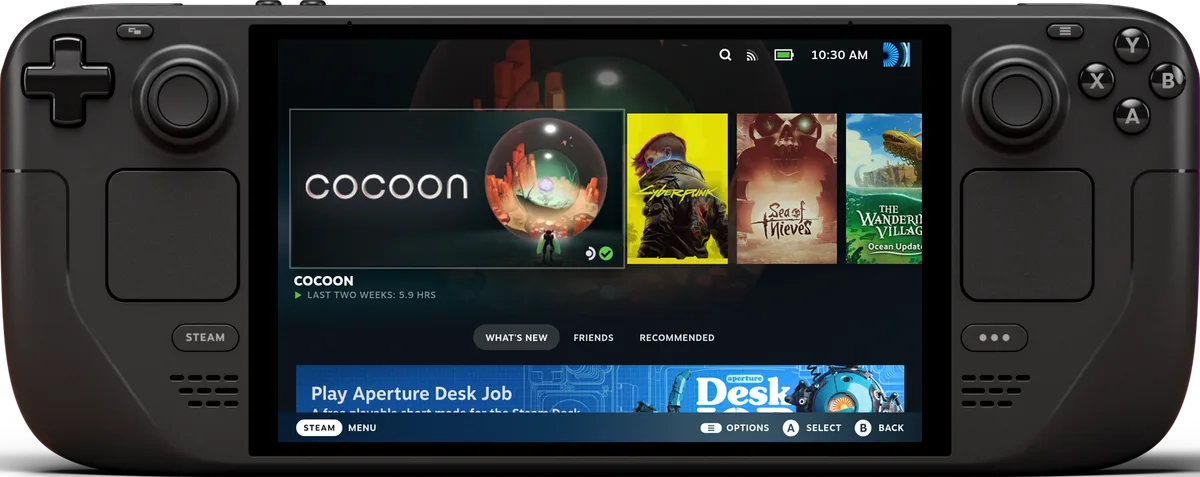
Match the fix to the symptom. A glitchy app or a slow menu needs a normal restart. A frozen screen needs a forced shutdown. A Deck that won’t power on needs a charger and, if that fails, the Volume+ boot options. A bad update calls for the previous-OS rollback, which keeps your games. Only a Deck that won’t boot, or one you’re selling, needs a wipe. Factory Reset covers a Deck that still reaches Steam. If it doesn’t, use ERASE USER DATA FROM DECK in the SteamOS menu or the USB re-image. All three delete local data. The steps follow Valve’s support pages, which apply to the LCD and OLED unless they say otherwise.
Restart normally
Valve’s first-step checklist is short: install pending updates (Steam > Settings > System > Software Updates), then restart from the Software Updates section or through Steam > Power > Restart. It also asks you to exit or disable anything you installed through Desktop Mode and test again. A restart deletes nothing.
If a problem started after you added a plugin or a Desktop Mode tool, that last item matters most, because it separates a SteamOS fault from a software fault you can remove.
Force a restart when the Deck is frozen
Valve’s guidance for a Deck that is on but unresponsive: hold the power button for 4 seconds on the LCD or 7 on the OLED. If it stays frozen, Valve suspects an OS-level problem and the next step is a full 10 seconds on the LCD or 16 on the OLED. This is the “hard reset” most searchers mean. It cuts power without a clean shutdown but wipes nothing, so unsaved game progress is the only thing at risk.
When it won’t turn on
Valve’s checks start with the LED next to the charging port.
- Lit LED: the Deck is receiving charge, and it stays lit at full charge. On the LCD the LED dims after 3 to 5 seconds, on the OLED after 15, which Valve lists as normal.
- Flashing LED after you press power: the battery is depleted. Plug the supplied power supply straight into the Deck, confirm the LED is on and charge for at least 15 minutes before powering on.
- Charging looks normal but the power button does nothing: hold Volume+ while powering on and choose Continue from the BIOS options.
Two shipping-state notes. LCD units arrive in battery-saving shipping mode and need a short charge before the first start, while OLED units power on out of the box by holding the button for 7 seconds. A Deck left on the charger for long periods may report less than 100%, which is intentional.
Battery storage mode
A storage mode exists for long periods unused. Shut down from the Power menu, hold Volume+ and press power to reach the BIOS menu, then go to Setup Utility, the Power menu and Battery storage mode. The LCD’s power LED blinks three times to confirm it. The OLED’s LED blinks blue twice after about 8 seconds. Plugging in the power supply and powering on normally wakes the Deck.
Boot menu and Boot Manager
Hold Volume Up and press the power button to open the boot menu. Release Volume Up when you hear the chime, then use the D-pad and A to pick Boot Manager. You need it for USB recovery drives.
Roll back to the previous SteamOS
If a recent update broke something, Valve’s rollback keeps installed games and saves, per its recovery page. Power the Deck fully down by holding the power button for 10 seconds, ideally while it’s plugged in. Hold the “…” button, press power, and keep holding until a menu labelled SteamOS appears. Choose the second entry from the top, Previous B.
The same menu has ERASE USER DATA FROM DECK. It clears all local user data and suits a Deck that can’t load Game Mode to use Factory Reset.
Factory Reset from Settings
Factory Reset works only if the Deck still boots into Steam. Press the Steam button, open Settings and System, scroll to Factory Reset and select the button. The reset clears all local data, games included, and reinstalls Steam and SteamOS. The Re-install SteamOS option may need an internet connection, because modified system files get replaced by the originals. Offline, turn that option off or use the rollback instead.
Valve’s pages don’t say what happens to a microSD card. The Steam Deck guide only covers formatting cards, so treat the card’s contents as at risk and back up anything on it you care about before you reset.
Re-image with the SteamOS recovery image
This is the deepest option. It suits a Deck that can’t boot, or one that ran another OS. Valve’s steps:
- Download the SteamOS image for Deck from Valve’s installation page.
- Write it to a USB key of at least 8 GB. Valve recommends Rufus on Windows and Balena Etcher on macOS or Linux, and warns that writing formats the drive.
- Shut the Deck down, plug in the key and open Boot Manager with Volume Up plus power.
- Boot from the EFI USB Device entry. The screen goes dark for about a minute.
- At the desktop, use the trackpad and trigger or the touchscreen to pick an option.
Pick Wipe Device & Install SteamOS on the desktop, as Valve’s install steps say. It fully wipes the Deck and installs stock SteamOS, and the Deck reboots into the SteamOS welcome experience.
The recovery environment also offers three repair and recovery options, which you choose after the same boot steps:
- Re-image Device is the full reset: nothing of yours survives and stock SteamOS goes back on.
- Repair SteamOS reinstalls the OS and aims to leave games and personal content alone.
- Recovery tools opens a prompt for changes to the boot partition.
Before you reset
Steam Cloud holds game saves, profile stats and many Steam client settings, and they sync to any machine you sign in on. Developers choose what a game uploads, so the store page’s cloud logo is only a starting point. Cloud can be toggled per game under Properties, or globally in Settings. Valve warns that Support is unlikely to recover lost cloud saves.
Non-Steam games, emulator saves and anything in Desktop Mode sit outside Steam Cloud, so copy them off the Deck first. Menu wording may shift with later updates. For tuning a Deck once it’s running again, see the performance settings guide.
When to contact Steam Support
When these steps don’t fix the problem, Valve’s troubleshooting guide sends you to a Steam Support ticket. It warns that damage from opening or modifying the Deck isn’t covered by the warranty. A Deck that still won’t charge or boot after a re-image points to hardware, which is Support’s call, not another wipe.
Questions
Does a Steam Deck factory reset delete my Steam account?
No. Valve describes the reset as clearing local data on the device, so you sign in again afterwards and reinstall your games. Steam Cloud saves and client settings sync back from your account, which Valve says are pulled from the cloud upon login, but only for games that use the cloud. Valve also says Support is unlikely to recover saves that were lost.
Can I roll back a bad SteamOS update without losing my games?
Yes. Valve's recovery page lists a rollback to the previous OS that keeps user data such as installed games and saves. You reach it from the SteamOS selection menu by holding the "..." button while powering on, and the menu entry is labelled Previous B.
Why does my Steam Deck show less than 100% after sitting on the charger?
Valve calls this normal. After long periods on the charger the battery is allowed to discharge slowly, which Valve says helps long-term battery health. Check the LED next to the charging port first: if it is lit, the unit is receiving charge.
Do I need a PC to re-image a Steam Deck?
Yes, to write the image. Valve's steps have you download the SteamOS image and write it to a USB key of at least 8 GB, with Rufus on Windows or Balena Etcher on macOS and Linux. The key then goes into the Deck's free USB port or a hub, so no dock is required.
Official sources
- SteamOS Recovery and Troubleshooting · Valve · Manufacturer
- SteamOS Installation and Repair · Valve · Manufacturer
- Steam Deck - Basic Use & Troubleshooting Guide · Valve · Manufacturer
- Steam Cloud · Valve · Manufacturer
Spotted a mistake or a step that no longer works? Tell us and we'll correct it.