Tips & tricks
Switch 2 tips and tricks: settings to change and features worth knowing
Switch 2 tips from Nintendo's support pages and update notes: the 80 to 90% charge cap, Handheld Mode Boost, VRR and HDR, microSD Express, virtual game card lending and more.
By ElvisPublished
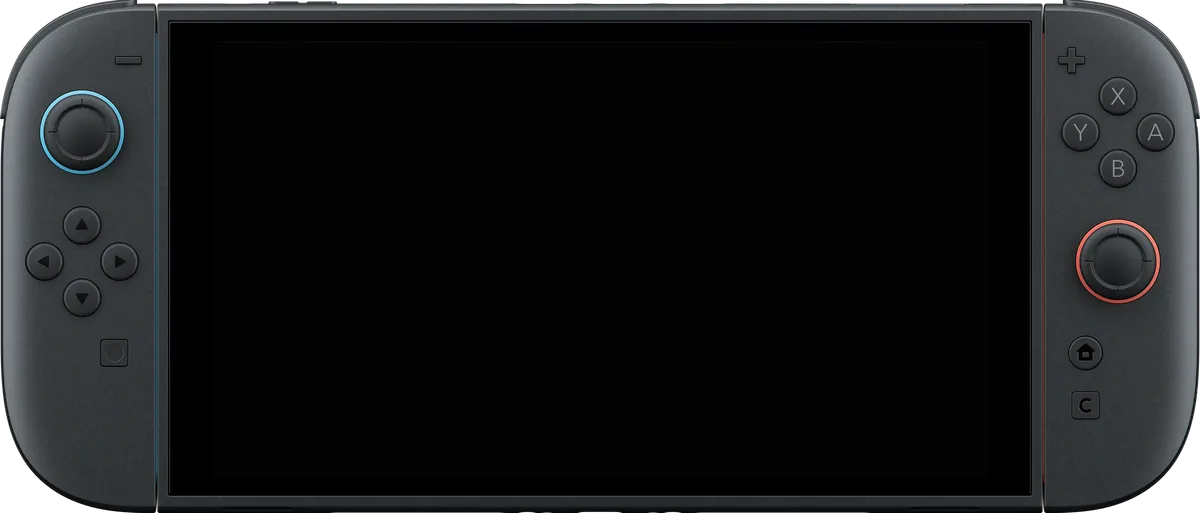
The two settings most worth changing on a new Switch 2 sit in System Settings > System: the charge cap that keeps the battery around 80 to 90% while it’s plugged in, and, if you still play original Switch games, Handheld Mode Boost. Past those two, the useful tricks are a mix of things Nintendo added in system updates since launch (VRR in TV mode, per-radio Airplane Mode, virtual game card settings) and small changes like swapping A and B. Everything below comes from Nintendo’s support pages and update notes, plus reporting from TechRadar, Engadget and Nintendo’s own feature pages, and menu names follow system update 23.0.0 from September 2026.
Cap the charge and show the battery percentage
Nintendo first announced a “Stop Charging Around 90%” toggle in its Nintendo Today app before launch; Engadget described it as a way to trade about a tenth of your runtime for less battery wear. System update 21.0.0 (November 10, 2025) renamed it “Stop Charging Around 80-90%”. The toggle is in System Settings > System, and TechRadar reports that a console left on the charger then sits at about 90%. It’s near the top of TechRadar’s list of changes for a new console. Before a day away from power, switching the cap off should let the battery charge to 100% (our reading of TechRadar’s description).
Just above it, TechRadar points to “Console Battery (%)”, which adds a number next to the battery icon. Nintendo rates battery life at about 2 to 6.5 hours per full charge, depending on the game, and a full recharge at roughly three hours with the console off or asleep. If the percentage ever looks wrong, for example the console keeps running for hours on a “nearly empty” reading, Nintendo’s fix is to install the latest system update and power the console off. Then hold volume up and volume down, press POWER once, and keep the volume buttons held until the Recovery Mode menu appears, which resets the battery meter. Power off again, turn the console back on and watch the reading. If it stays wrong after a few tries, Nintendo says the console needs to go in for service.
Turn on Handheld Mode Boost for Switch 1 games
Added in 22.0.0 (March 16, 2026), Handheld Mode Boost makes original Switch games run in handheld mode the way they would on a TV. It lives under System Settings > System > Nintendo Switch Software Handling, and since 23.0.0 you can also put it in Quick Settings. Nintendo lists the trade-offs: visuals can improve but power draw can go up, some games won’t change, and Switch 2 games aren’t affected at all. Because the console reports TV mode, some Switch games may lose touch-screen input, and on-screen instructions may be wrong. The support page says attached Joy-Con 2 then act as a Nintendo Switch 2 Pro Controller and still tells you to detach them before using other controllers, while the 23.0.0 notes say other controllers now work with the Joy-Con 2 attached.
Get the TV picture right
TV mode needs an Ultra High Speed HDMI cable. Nintendo is explicit that the cable that came with the original Switch won’t run Switch 2 TV mode, and neither will the old AC adapter in the dock. Nintendo’s feature page caps 4K output at 60 fps; higher frame rates up to 120 fps depend on the game and the display. TechRadar’s setup piece suggests setting TV Resolution under System Settings > Display yourself if you prefer 1440p or 1080p at a higher refresh rate over automatic detection.
For HDR, TechRadar recommends limiting it to compatible software instead of leaving it always on, so games without HDR support still look the way they should. 21.0.0 renamed the system-wide toggle to “System Screen’s HDR Output” and improved the Adjust HDR screen, so the menu wording in older guides is out of date. VRR in TV mode arrived in 23.0.0 (September 2026), but only after a Switch 2 dock update and only when the game and TV both support it. The same update renamed Dock Output Information to Video Output Information, which now also lists the signals the connected TV can display.
Controls: swap A and B, and use Joy-Con 2 as a mouse
If you’re coming from Xbox, TechRadar suggests the Swap A and B option under System Settings > Controllers & Accessories. It changes the inputs only, so on-screen prompts and the printed letters stay the same.
Each Joy-Con 2 has a mouse sensor on its side, and TechRadar notes that placing one on its edge brings up a cursor in most of the system menus, handy for scrolling a large library while docked. A plain USB mouse also works in some games, though not in the menus, and support varies by game: TechRadar’s mouse worked in Cyberpunk 2077: Ultimate Edition but not in Super Mario Galaxy 2. Original Switch Joy-Con and the Switch Pro Controller still pair wirelessly, according to Nintendo.
Storage: only microSD Express counts
The Switch 2 saves and loads games only from microSD Express cards, up to 2 TB, and the first card you insert needs a system update over the internet. Nintendo says a regular microSD card from a Switch can only be used to look at screenshots and videos captured on it. 22.0.0 added a storage breakdown by data type for internal memory and the card, which helps when the 256 GB fills up. For moving a library across from a Switch, see our guide to Switch 1 games on Switch 2.
Virtual game cards: move and lend digital games
Open Virtual Game Cards from the HOME Menu to eject a digital game from one console and load it on another linked to the same Nintendo Account. Up to two systems can be linked per Nintendo Account, and they pair once over local wireless plus the internet. A loaded game needs the internet the first time it starts and again each time you eject it; in between it runs offline for every user on that console. You can also lend games to members of your Nintendo Account family group: one game per account for 14 days, over local wireless with both consoles online. When the loan ends, the borrower keeps their save data. Switch 2 exclusives and Switch 2 Edition games only load on a Switch 2, and Nintendo says some games can’t be lent, such as titles that are only available through a Nintendo Switch Online membership.
23.0.0 added a Settings entry inside Virtual Game Cards, where you can see and edit which of your consoles can use them. And if a game can’t be ejected from your other console because it’s switched off or offline, the Switch 2 now offers to start it with an online license instead, for the buyer’s account only.
GameChat, cameras and sharing
The C Button on the right Joy-Con 2 opens GameChat at any time, and pressing it again during a chat brings up mute and leave controls. It needs a Nintendo Switch Online membership. You don’t have to buy Nintendo’s camera for video chat: Nintendo supports compatible USB-C cameras and has a Test USB Camera check in System Settings. TechRadar’s writer says a generic webcam worked fine, while warning that compatibility isn’t guaranteed. GameShare lets a Switch 2 share a compatible game with players on a Switch 2 or a Switch, even if they don’t own it. For remote sharing over GameChat, Nintendo’s footnote requires a Switch 2 and GameChat for each player, and the shared game stops working when the chat ends.
Small settings that save time
- Dark theme: TechRadar points to Basic Black under System Settings > Themes, easier on the eyes at night than the default white.
- Skip the user picker: with a single profile, System Settings > User has “Skip Selection Screen”, per TechRadar. It doesn’t appear once a second profile exists.
- Console Lock: TechRadar lists a PIN under System Settings > System; the Nintendo Switch Parental Controls app adds playtime limits and GameChat approvals.
- Airplane Mode per radio: since 22.0.0, Quick Settings can toggle Bluetooth, Wi-Fi and NFC separately in Airplane Mode, so Bluetooth can stay on while Wi-Fi is off.
- Captures: Nintendo’s support pages say a press of the Capture Button takes a screenshot, and holding it in a compatible game saves up to 30 seconds of the gameplay before the press. Album can trim a clip or save a frame as a screenshot. The Nintendo Switch App can receive Album uploads, and 22.0.0 added clipped videos and annotated screenshots to Automatic Uploads.
For the hardware itself, our Switch 2 spec page lists the battery, display and storage figures with their sources.
Questions
Can I use my old Switch charger with a Switch 2?
Only plugged straight into the console. Nintendo says the original Switch AC adapter (HAC-002) can charge a Switch 2 directly, but its power output is too low to run the Switch 2 dock in TV mode. For the dock, use the Switch 2 adapter (NGN-01).
Does Handheld Mode Boost make Switch 2 games run better?
No. Nintendo says the setting has no effect on Switch 2 software. It only changes how original Switch games run when the console isn't docked, and some of those games won't change at all.
Why won't my old microSD card save games on the Switch 2?
The Switch 2 only reads and writes games and save data on microSD Express cards. A standard microSD card from a Switch can still be used to view screenshots and videos captured on it, according to Nintendo, but nothing else.
Can I lend a Switch 2 game to a friend who lives somewhere else?
Not with virtual game cards. Lending only works with members of your Nintendo Account family group, and the two consoles have to connect over local wireless, so they need to be in the same place, with both online. GameShare is the other option, though for sharing over GameChat Nintendo requires a Switch 2 and GameChat for every player, and the shared game only works until that chat ends.
Official sources
- System Update History for Nintendo Switch 2 · Nintendo · Manufacturer
- How to Use Handheld Mode Boost on Nintendo Switch 2 · Nintendo · Manufacturer
- The Battery Charge Indicator or Percentage Displays Incorrectly on Nintendo Switch 2 · Nintendo · Manufacturer
- How to Connect a Nintendo Switch 2 Console to a TV · Nintendo · Manufacturer
- microSD Card and microSD Express Card Compatibility with Nintendo Switch 2 and Nintendo Switch · Nintendo · Manufacturer
- General Tips for Using Nintendo Switch 2 (MT-10001) · Nintendo · Manufacturer
Reviews and reports cited in this guide (8)
- Virtual Game Cards · Nintendo · Manufacturer
- Nintendo Switch 2 features · Nintendo · Manufacturer
- Getting started with Nintendo Switch 2 · Nintendo · Manufacturer
- These nine hidden Nintendo Switch 2 features can help your console last longer, save you money, and more · TechRadar · News · January 15, 2026
- 5 Nintendo Switch 2 settings I recommend changing as soon as you boot your new console up · TechRadar · News · June 18, 2025
- The Switch 2 has a mode that caps battery charge at 90 percent · Engadget · News · May 12, 2025
- How to Capture and Edit Gameplay Video on Nintendo Switch 2 · Nintendo · Manufacturer
- How to Capture and View Screenshots on Nintendo Switch 2 · Nintendo · Manufacturer
Spotted a mistake or a step that no longer works? Tell us and we'll correct it.