How-to
ClawTweaks for MSI Claw: Download, Install, Features
ClawTweaks is a community Game Bar widget for Intel MSI Claws: per-game TDP, FPS caps, remapping and fan curves. Supported models, install order, releases 1.0.1 to 1.0.3.
By ElvisPublished Updated
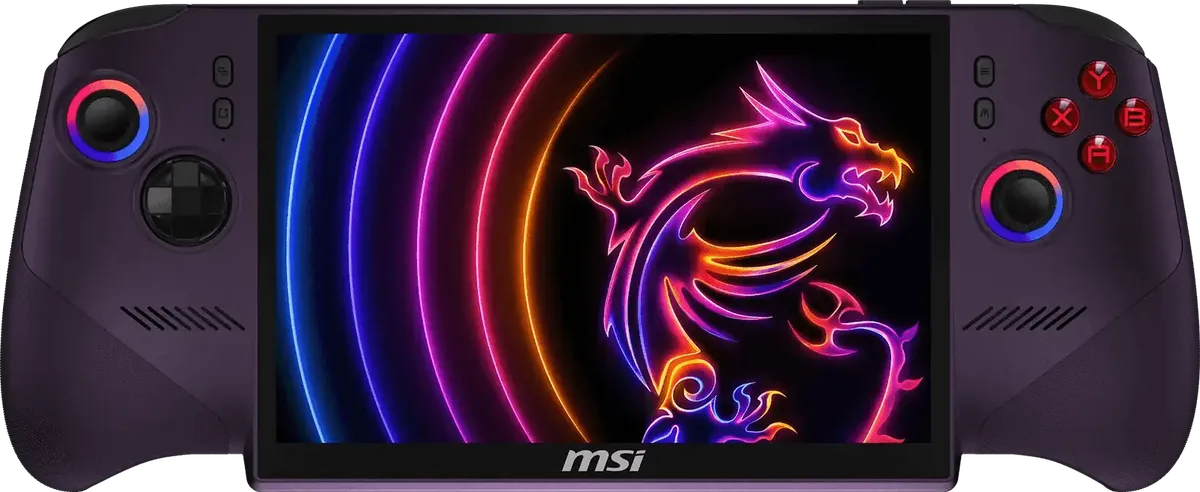
ClawTweaks is an open-source (AGPLv3) Xbox Game Bar widget for Intel-based MSI Claw handhelds, distributed through its GitHub releases page; the install order and a caution on the installer are below. It adds per-game TDP and FPS profiles, controller and button remapping, gyro settings, a custom fan curve and a battery charge limit, according to the project’s README. It is a community project, not an MSI product, and its README is our main source: we haven’t run it ourselves.
Which Claws it supports
The README lists these as supported: the Claw A1M (Meteor Lake), Claw 8 AI+ A2VM and Claw 7 AI+ A2VM / A2VMX (both Lunar Lake), and the “Claw 8 EX (Panther Lake)”, which appears to be our Claw 8 EX AI+ with Intel’s Arc G3 Extreme. The Claw A8 EX with AMD’s Z2E (our Claw A8 page) is listed as not supported. The installer checks the device and aborts with an error if it isn’t one of the supported models.
What you need first
MSI Center M has to be installed and running before you install ClawTweaks, per the README. The widget can then hide or disable Center M with one click, but it still relies on it for the OEM button and controller virtualization. If you used a third-party Center M replacement, the README says to uninstall everything and reinstall Center M properly.
For controller features, ClawTweaks creates a virtual Xbox 360 controller through ViGEm and hides the physical gamepad with HidHide. The README lists both ViGEmBus and HidHide as requirements, but it still describes the ViGEm path with VIIPER support “coming soon”, while the 1.0.2 notes say a VIIPER fork now lets Steam see a Steam Deck or DualSense controller. The README appears to lag the releases, so check the current release notes for what the installer bundles. For the on-screen display, it uses RivaTuner Statistics Server (RTSS).
What it does
- TDP: one main slider, plus a second slider for power users who want a separate boost limit (PL2). The README says the widget adds 1 W to PL2 automatically so the limit applies from a single slider.
- FPS limits: two methods. Intel’s driver-level limiter (IGCL) offers 60, 40 and 30 fps tiers and, according to the README, doesn’t render a frame and then discard it. RTSS offers 30, 40, 60, 90 and 120 fps limits and adds about 1 fps of overhead by the README’s account.
- Per-game profiles: TDP, boost, FPS cap, CPU boost, power mode, controller mapping and gyro settings save per game and switch when the game launches. A default profile covers games you haven’t set up, and a profile can hold separate values for plugged-in and battery use.
- Controller: per-game remapping of every hardware button, including M1 and M2, and a configurable single and double click for the left front MSI button. Gyro can drive the right stick or the mouse pointer.
- Fan and charging: a drag-to-edit fan curve written to the embedded controller (the README labels it Lunar Lake and doesn’t say whether the Panther Lake Claw 8 EX gets it), with Quiet, Default, Aggressive and Custom presets, and a firmware-level charge limit that the README says the controller enforces even when the Claw sleeps or is off, as long as it stays plugged in.
- Extras: an on-screen display with FPS, frametime graph, temperatures and power, and Lossless Scaling controls with frame generation modes.
The fan curve and charge limit write to hardware, so read each release’s notes before changing them. One more caution: the README says it ships no prebuilt binaries, yet the release pages offer setup executables, and we haven’t verified who signs them. The 1.0.1 notes also list a bug fix for the VIIPER virtual controller that interfered with the device’s sleep and screen-off behaviour. The README adds that controller emulation pauses automatically while MSI Center M is active. The README, which is undated, says the fan curve is global with per-game fan profiles planned, and the 1.0.3 notes add a Fan tab to the Quick Access Menu.
What changed from 1.0.1 to 1.0.3
GitHub lists the releases as follows.
| Release | Date | Main changes |
|---|---|---|
| 1.0.1 (titled “1.0”) | October 18 | Redesigned tab layout, game banner in the Game Bar widget, new tiles including suspend and resume for a running game, mouse mode for every button |
| 1.0.2 | October 26 | Full Steam Input remapping through a virtual Steam Deck or DualSense controller, new HTML Quick Access Menu, hybrid controller and mouse actions |
| 1.0.3 | November 4 | Larger Quick Access Menu with fan, device and shortcut tabs, per-colour saturation and tint controls for Intel graphics, library renamed CyanNova |
Two notes from the release pages. In Windows full-screen experience (Xbox mode), the Quick Access Menu works only with the virtual controller, per the 1.0.2 notes. And the 1.0.3 notes say the optional library is being prepared for a Microsoft Store release under the name CyanNova and can run on any Windows PC.
Install order and updating
Based on the README and release notes, the order is: install MSI Center M and keep it running, install ViGEmBus and HidHide (plus RTSS if you want the overlay or RTSS limits), then run the setup file from the 1.0.3 release page, ClawTweaks_1.0.3.20_Setup.exe. The 1.0.3 notes make the setup mandatory for everyone, new and existing users alike. The 1.0.1 notes let existing users update the Game Bar widget from the library menu, and the 1.0.2 notes list that widget update as one option while also asking new and existing users to run its setup.
For how reviewers rate the hardware itself, see our Claw 8 EX AI+ review roundup.
Questions
Is ClawTweaks made by MSI?
No. The GitHub project is a community fork of GoTweaks, a Lenovo Legion Go widget, and its README says it replaces AMD-specific features with Intel ones and adds MSI Claw hardware support. MSI's own software, MSI Center M, still has to be installed first.
How do I install ClawTweaks?
Per the README and release notes: install MSI Center M and keep it running, install ViGEmBus and HidHide (plus RTSS for the overlay or RTSS limits), then run the setup file from the 1.0.3 release page on GitHub. The 1.0.3 notes make the setup mandatory for everyone. It is a community project, so read the caution in the guide before running the installer.
Will it work on the MSI Claw A8?
No. The README marks the Claw A8 EX (AMD Z2E) as not supported and says the installer aborts with an error on unsupported devices.
Do I need the setup file to update to 1.0.3?
Yes. The 1.0.3 release notes say every user, new or existing, must run the setup because of cleanup work, and that updating the widget alone is not enough. The 1.0.1 and 1.0.2 notes let existing users update the widget from the library menu.
Sources
Reviews and reports cited in this guide (4)
- ClawTweaks README: supported devices, features and requirements · GitHub (enterTheVoidCode) · Community
- ClawTweaks 1.0.3 release notes · GitHub (enterTheVoidCode) · Community · November 4, 2026
- ClawTweaks 1.0.2 release notes · GitHub (enterTheVoidCode) · Community · October 26, 2026
- ClawTweaks 1.0 (1.0.1) release notes · GitHub (enterTheVoidCode) · Community · October 18, 2026
Spotted a mistake or a step that no longer works? Tell us and we'll correct it.