Settings
ROG Xbox Ally settings: operating modes, TDP and controls in Armoury Crate SE
What Silent, Performance, Turbo and Manual mode draw on the ROG Xbox Ally and Ally X, plus game profiles, frame limits, CPU Boost and controller settings in Armoury Crate SE.
By ElvisPublished
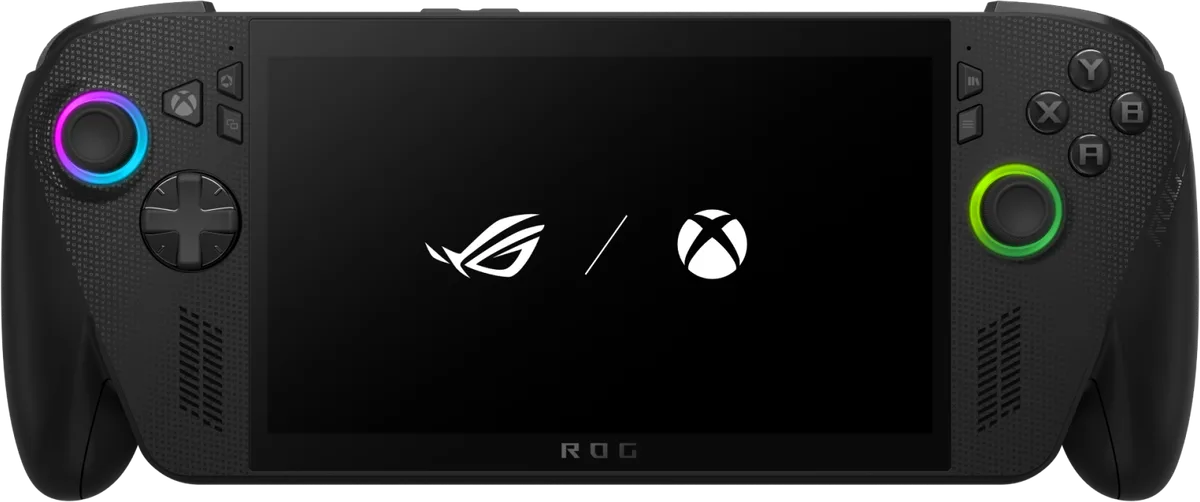
Notebookcheck’s favorite mode on the ROG Xbox Ally X is Performance (17 W), which it says gives a good balance of performance, battery runtime and quiet fans. Turbo adds little, even on the charger. Silent suits 2D games, cloud play and emulation of older systems, and Windows Central says many 3D games still run well at 13 W if you lower the settings. The operating mode, frame limit, control mode and brightness are all in the Command Center. Button remapping, per-game profiles and stick tuning sit in the full Armoury Crate SE app. The figures below cover the ROG Xbox Ally and Xbox Ally X, not the OLED Xbox Ally X20.
Where the settings live
The Command Center opens with the button marked with a hexagon, to the left of the screen. ASUS says the Command Center has a number of quick settings you can toggle, and Xbox says it is now integrated into Game Bar. A long press on the same button opens Gaming Copilot instead.
From the Command Center, “Open Armoury Crate SE” launches the full app with the game library, Settings, the Update Center, lighting and control configuration. Xbox points to this app, not Windows, for button remapping and input accessibility options.
Xbox’s getting-started guide opens Game Bar’s settings with the Xbox button followed by RB, or with a swipe in from the left edge of the screen. The same guide pairs Bluetooth controllers under Settings > Bluetooth there, and reaches Windows Settings through the Settings widget’s More Settings.
Update before you tune anything. ASUS and Xbox give the same path: Command Center, Open Armoury Crate SE, Update Center, Check for Updates, Update All. Xbox’s guide sends Windows updates through Windows Update, opened from Game Bar’s Settings widget, and ASUS adds that the Update Center has a toggle for automatic updates.
Operating modes and their wattages
ASUS describes Silent, Performance and Turbo as three power levels for the chip. Silent uses the least power and keeps the fans quiet, Performance sits in the middle, and Turbo gives the chip the most, with a little extra on some models when plugged in. The ASUS pages cited here don’t list wattages, so these come from reviews:
| Mode | ROG Xbox Ally X (Z2 Extreme) | ROG Xbox Ally (Z2 A) |
|---|---|---|
| Silent | 13 W | 6 W |
| Performance | 17 W | 15 W |
| Turbo on battery | 25 W | not listed separately |
| Turbo plugged in | 35 W | 20 W |
The figures are from Tom’s Hardware’s reviews of both models; its Xbox Ally X table gives Turbo as “35W (25W unplugged)”. Notebookcheck’s Xbox Ally X table gives each mode’s APU TDP as three numbers: 23/19/13 W for Silent, 30/24/17 W for Performance, 35/30/25 W for Turbo on battery and 55/45/35 W for Turbo on the charger. Its base Xbox Ally review says the processor may draw 24/20 W in Turbo, 15 W in Performance and 6 W in Silent. Neither review explains the individual numbers.
What each mode costs and gains
Notebookcheck’s Cyberpunk 2077 runs at 1080p Ultra on the Xbox Ally X:
| Mode | Cyberpunk 2077, 1080p Ultra | Max fan noise |
|---|---|---|
| Silent (13 W) | 15.5 fps | 29.7 dB(A) |
| Performance (17 W) | 23 fps | 31.3 dB(A) |
| Turbo, battery (25 W) | 26.7 fps | 37.4 dB(A) |
| Turbo, plugged in (35 W) | 28 fps | 43.4 dB(A) |
Most of the gain comes between Silent and Performance. Above 25 W, the extra 10 W bought 1.3 fps and 6 dB(A) more fan noise. Notebookcheck also found the 17 W Performance mode about level with the 2024 Ally X in its 25 W Turbo mode.
For battery life, Notebookcheck’s chart shows 2 hours 13 minutes in Cyberpunk 2077 at Ultra and 150 nits, which its text gives as the Turbo result. Its text adds 3 hours 12 minutes in Performance mode and about 4 hours in Silent without naming the workload, plus 6 to 7 hours in cloud play or emulation of older games.
Windows Central, a year after launch, puts battery life at 4 to 5 hours of 2D games in the 13 W Silent mode and 2 to 3 hours of a heavier game in the 17 W Performance mode. It says Turbo mode, which it describes at 35 W, drains the battery “in an hour or so”.
On the base Xbox Ally, Notebookcheck says about 2 hours are possible in Turbo and just under 3 hours in Performance mode, and its battery chart shows 2 hours 6 minutes in Cyberpunk 2077 at Ultra and 150 nits. Tom’s Hardware found that the Xbox Ally only clearly beat a Steam Deck OLED when plugged in or in Turbo.
Manual mode: set your own limits
ASUS’s setup guide for the Ally family says you can create a Manual operating mode with your own wattage and fan curve. On the original ROG Ally, Armoury Crate SE 1.4.10 (February 2024, per Notebookcheck) put quick sliders for three AMD power limits into the Command Center. ASUS defines them in its Manual Mode guide for AMD laptops:
- SPL: the power the chip can hold indefinitely.
- SPPT: allowed for up to 2 minutes.
- FPPT: the peak, allowed for up to 10 seconds.
The same guide warns that high limits paired with a slow fan curve make the chip throttle, so a manual setup can end up slower than a preset. Try any custom mode in the game you plan to play.
Game profiles and Default Game Profiles
To give one game its own setup, highlight it in Armoury Crate SE’s Game Library and press X. ASUS says a Game Profile can hold an operating mode, button mappings and performance features such as AMD Fluid Motion Frames.
Xbox added Default Game Profiles (Preview) on November 25, 2025, with 40 supported games at launch, among them Fortnite, Forza Horizon 5, Halo: The Master Chief Collection and Hollow Knight: Silksong. Each profile is made for its game and only applies on battery. It sets a recommended TDP and frame limit, adds power when the game drops below its target and caps the frame rate when it runs above it. Xbox’s example is Silksong, where the default profile adds close to an hour of battery life over Performance mode at 120 fps. The on/off toggle sits at the top of the Armoury Crate Command Center widget in Game Bar. By April 2026, Xbox said the profiles worked on both the Xbox Ally and the Xbox Ally X.
Frame limit, CPU Boost and VRAM
The Command Center’s FPS Limit button caps games that lack their own limiter, though ASUS’s battery guide notes it needs the game in exclusive full screen. Turning off CPU Boost (Armoury Crate SE, Settings > Performance > Eco Assist) trades a little speed in demanding games for efficiency; Notebookcheck saw a couple of watts saved in some games, mostly with a frame cap on. ASUS adds that light indie and 2D games lose little or nothing.
GPU memory is set in Armoury Crate SE’s GPU settings. Per Notebookcheck and Tom’s Hardware, the Xbox Ally X reserves 8 GB of its 24 GB by default and the Xbox Ally 6 GB of 16 GB; ASUS says more can help with higher-resolution textures. Radeon Super Resolution and AMD Fluid Motion Frames switch on from the Command Center, and the Xbox Ally X has FSR 4.1 in preview.
Controller settings
If a game ignores the controller, look at Control Mode in the Command Center first. Auto is ASUS’s starting point, and Gamepad or Desktop can be forced for games that don’t detect it.
Everything else lives under Armoury Crate SE’s Settings. Configure under Control Mode holds separate layouts for Gamepad and Desktop Mode, where any button can be remapped or set to a custom action, and the M1 and M2 back buttons can add a second function to other buttons. Per-game layouts go in that game’s profile. Run Calibrate on the sticks and triggers before tuning stick dead zones and response curves, trigger sensitivity or vibration strength. The Gyro tab maps motion to the right stick (ASUS’s choice for aiming in shooters), the left stick or the mouse, with its own sensitivity, dead zone and an optional hold-to-enable button.
Docked play
Since Xbox’s April 30, 2026 update, docking sends the game to the TV and turns off the handheld screen. Pairing an Xbox controller turns off the built-in controls, and a Display widget in Game Bar covers resolution, refresh rate and projection mode on the TV.
Battery care
ASUS’s Battery Care Mode in Armoury Crate SE stops charging at 80% to reduce battery wear. Windows Central’s reviewer says they use it religiously to keep the charge around 80%. Both handhelds also support bypass charging when plugged in, according to ASUS.
Which mode for whom
Silent fits long trips, 2D games, cloud play and older systems. Performance, or a Default Game Profile where the game has one, covers most games on battery. Turbo on the charger is for heavy games at a desk when fan noise doesn’t matter, and the tables above show how little it adds.
Specs and prices are on the ROG Xbox Ally X and ROG Xbox Ally pages.
Questions
Does Performance mode cost much frame rate against Turbo on battery?
Not much in Notebookcheck's Cyberpunk 2077 run on the Xbox Ally X at 1080p Ultra: 23 fps at 17 W against 26.7 fps at 25 W, with fan noise peaking at 31.3 dB(A) instead of 37.4 dB(A).
Why does Turbo mode give more power when the Xbox Ally X is plugged in?
ASUS caps Turbo at 25 W on battery and allows 35 W on the charger, per Tom's Hardware and Notebookcheck. Notebookcheck saw only a small gain from the extra 10 W: 28 fps against 26.7 fps in Cyberpunk 2077 at 1080p Ultra, while fan noise climbed from 37.4 to 43.4 dB(A).
Can I stop the battery from charging to 100%?
Yes. ASUS's Battery Care Mode in Armoury Crate SE stops charging at 80% to reduce long-term wear. When you need a full charge for a trip, Instant Full-Charge Mode charges to 100% and stays in effect for 24 hours.
Sources
- 15 tips & shortcuts to set up and optimize your ROG Ally or ROG Xbox Ally · ASUS ROG · Manufacturer · October 15, 2025
- How to extend the battery life of your ROG Ally or ROG Xbox Ally · ASUS ROG · Manufacturer · October 15, 2025
- How to tweak your ROG laptop's performance with Armoury Crate's Manual Mode · ASUS ROG · Manufacturer · November 3, 2022
- Welcome to Your New ROG Xbox Ally: Essential Tips for Getting Started · Xbox Wire · Documentation · December 18, 2025
- New ROG Xbox Ally Updates: Default Game Profiles Available in Preview · Xbox Wire · Documentation · November 25, 2025
- New ROG Xbox Ally Updates: Docking Improvements, Auto SR Preview, Collective Library, Enhanced Vibration, and More · Xbox Wire · Documentation · April 30, 2026
- Full-screen Xbox experience for gaming handhelds - Asus ROG Xbox Ally X review · Notebookcheck · Review · October 16, 2025
- Slower than the Steam Deck OLED: Asus ROG Xbox Ally handheld review · Notebookcheck · Review · October 23, 2025
- ASUS ROG Ally receives quick access TDP slider and other improvements with new updates · Notebookcheck · News · February 5, 2024
- Asus ROG Xbox Ally X review: Getting a grip on Windows gaming · Tom's Hardware · Review · October 15, 2025
- Asus ROG Xbox Ally review: The cheapest Windows handheld gets points for showing up · Tom's Hardware · Review · April 8, 2026
- A year later: Xbox Ally X re-review · Windows Central · Review · October 29, 2026
Spotted a mistake or a step that no longer works? Tell us and we'll correct it.