Settings
Legion Go 2 settings in Legion Space: thermal modes, TDP, controllers and display
Which thermal mode, custom TDP, dead zone, gyro and refresh rate settings the Legion Go 2 offers in Legion Space, with the wattages reviewers measured and where they disagree.
By ElvisPublished
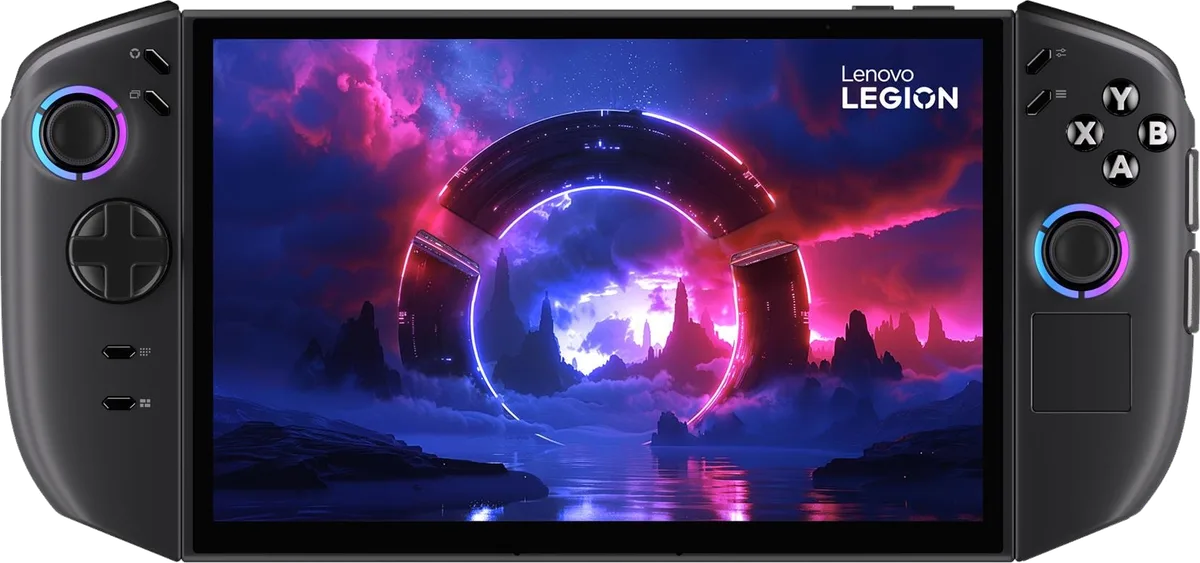
Legion Space puts the Legion Go 2’s power, controller and display settings in one app, and the choice that matters most is the thermal mode. Lenovo’s user guide recommends Performance when you are plugged in, Balance on battery and Quiet to save charge, with a Custom mode for setting your own TDP. Reviewers measured different wattages for each mode, so this guide gives Lenovo’s own instructions first and the reported numbers second, each with its source. Where no source recommends a value, it says so. Everything here covers the Windows 11 model; Lenovo says Legion Space isn’t available on SteamOS configurations.
Open Legion Space and switch thermal modes
Press the Legion L button on the left controller to start Legion Space, according to Lenovo’s list of preset shortcuts. Legion R opens the Windows sidebar instead. Tom’s Guide describes a Quick Settings sidebar for performance, resolution, refresh rate and controller vibration, which is presumably the panel Legion R opens.
Lenovo’s user guide describes four thermal modes and says the maximum performance, power draw and fan speed limit differ between them. You can switch in the Performance section of Legion Space or with Legion L + Y.
| Thermal mode | Lenovo’s recommended conditions |
|---|---|
| Performance | Plugged in, best performance, a little fan noise is fine |
| Balance | On battery, frequent switching between tasks |
| Quiet | Saving battery, as quiet as possible |
| Custom | Setting your own Thermal Design Power (TDP) for the situation |
Lenovo’s default is Performance, according to Tom’s Hardware. The same review notes that Lenovo’s own advice to reviewers was to use Performance when plugged in, so the reviewer suggested stepping down to at least Balanced on battery.
What each mode draws, according to reviewers
Lenovo’s guide doesn’t print wattages for the modes, and the published figures don’t line up. Treat them as each reviewer’s reading of one unit and firmware, not as a spec.
| Source | Mode | Reported limit |
|---|---|---|
| Engadget (2025-10-28) | Performance | 20 W unplugged, 32 W plugged in |
| Notebookcheck (2026-02-14) | Performance | reports the TDP is quickly limited to 20 W in its battery-life section (not a metered reading); 35/32 W CPU power limits and a held 32 W power limit in its plugged-in stress test |
| Trusted Reviews (2026-07-13) | Performance | 30 to 35 W plugged in |
| Trusted Reviews | Balanced | 15 W, used for its unplugged tests |
The Z2 Extreme itself is a 15 to 35 W configurable TDP chip, per Tom’s Hardware. A 15 W Balanced limit sits at the bottom of that range, which fits Trusted Reviews’ number, while Notebookcheck’s 20 W battery reading and Engadget’s 20 W unplugged Performance both point to a higher battery cap in Performance. Nobody in this set published Quiet mode’s wattage.
Notebookcheck did publish battery results by mode. In its gaming test, Performance mode (limited to about 20 W) lasted around 2.5 hours, Silent (Notebookcheck’s name for Quiet) just over five hours and Balanced just under three. Manual mode at full power ran 1 hour 17 minutes. The text ties these figures to the mode, not to a named game, so read them as a ranking of modes rather than a promise.
Set a custom TDP
Custom mode is where you choose the limits yourself, within the chip’s 15 to 35 W configurable range plus short boosts. Tom’s Hardware describes it as adjustable watt by watt in Legion Space’s performance profiles. Notebookcheck and Engadget give the ceiling: 35 W sustained, with peaks to 45 W. Engadget adds that the 45 W boost lasts up to 10 seconds. Notebookcheck says Custom mode works the same on battery as plugged in, so the full limits are available without the charger.
What you pay for it is shown in the same reviews:
- Fan noise. Notebookcheck measured a 39.7 dB(A) maximum in Performance mode and 46 dB(A) in Manual mode on mains power, with a sustained limit only 3 W higher.
- Battery. The 1 h 17 min Manual-mode runtime above.
- Frame rate. Tom’s Hardware compared the default Performance mode unplugged with a plugged-in Custom setup of 35 W, a 45 W burst and fans at full speed. Shadow of the Tomb Raider at medium settings went from 66 fps to 75 fps at 800p and from 42 fps to 47 fps at 1200p; Borderlands 3 at 1200p went from 50 fps to 56 fps. The reviewer saw the larger gains at the lower resolution, and the comparison mixes power source and TDP, so it doesn’t isolate Custom mode.
- Against an Xbox Ally X. Engadget saw 57.5 fps in Cyberpunk 2077 at 35 W (medium, 1080p, FSR Performance), about seven percent behind the ROG Xbox Ally X at the same settings.
No source we found recommends a specific Custom wattage for specific games, so treat these as limits and costs, not as a preset to copy. For the cheaper end of the scale, Engadget ran Returnal at 17 W on medium and got 39 fps.
Controller settings
Lenovo’s FAQ puts the controller options under the CONTROLLERS tab.
Dead zone. The dead zone is how far a stick moves before input registers. In CONTROLLERS, open Joystick Settings and slide the left and right values separately, from 1% to 100%. Lenovo warns that anything under 5% may cause drift, which is the stick registering input when untouched. Tom’s Hardware notes the Go 2’s controllers use Hall effect sticks that should prevent drift. If a stick has genuinely wandered, Lenovo lists two calibration shortcuts: hold LT + LS for 7 seconds for the left stick and RT + RS for 7 seconds for the right.
Gyro. Open CONTROLLERS, then Gyro Settings, and choose a gyro behavior for the controller.
Vibration. Lenovo lists four levels: off, weak, medium and strong. Medium is the default and the setting is in the More section of Legion Space; the controller buzzes when you switch to show it took effect.
Remapping. Tom’s Hardware says the right controller has three buttons that can be customized in Legion Space. It also reports that remapping while a game was running made the software freeze and demand a controller update that didn’t exist, so change mappings before you launch the game.
FPS mode. The right controller has a mouse sensor for FPS mode, and Lenovo’s guide lists an FPS mode switch on the bottom edge of the console. Tom’s Hardware describes standing the controller in an included base so it works like a mouse. The text of Lenovo’s guide that we could read has no setup steps for it, so this guide has none either.
Input mode. With both controllers attached the console is in X-input mode. Detach one and it switches to Dual D-input. Lenovo lists Legion L + RB, held for more than one second, as the shortcut between X-input and D-input.
If a controller misbehaves, Lenovo’s reset is a SIM-ejection pin in the hole above the slide rail. For a factory reset hold Legion L + LB + LS for 3 seconds (left) or Legion R + RB + RS (right), which deletes the data stored in the controller.
Display settings
The screen is an 8.8-inch 1920 x 1200 OLED with 60 Hz and 144 Hz refresh rates, per Lenovo’s specifications. Notebookcheck lists it as supporting adaptive sync, and Trusted Reviews says variable refresh rate stops tearing and judder.
To change the refresh rate, use the Display section of Legion Space or Settings, System, Display, Advanced display. Lenovo notes 60 Hz is adequate for most uses and more efficient, and that a higher rate usually looks smoother in video and games.
Two measurements are worth knowing. Notebookcheck recorded a peak of 1,155 cd/m2 with HDR content and just under 500 cd/m2 in SDR. It also detected PWM flicker at 720 Hz at brightness settings of 85% or below, which the reviewer judged unlikely to bother most people. Tom’s Hardware ran one long session at 30% brightness and an 800p screen with a 720p game, balanced mode and a 60 fps cap, and called the screen still usable in a dark room.
Tom’s Guide says it only got smooth results after switching on Radeon Super Resolution in the General submenu of the Quick Settings sidebar; the reviewer calls FSR the handheld’s secret weapon.
Updates, and Xbox full screen
Lenovo’s FAQ updates drivers and BIOS from Legion Space: open SETTINGS, then Disks and Drivers, then Check for Updates. Trusted Reviews found that the handheld didn’t boot straight into the Xbox full screen experience at first, leaving desktop Windows, and that Legion Space competes with the Xbox app when set as the default launcher. Notebookcheck wrote in its review that an Xbox full screen update was expected in spring 2026. We didn’t find a Lenovo page that gives the current menu path for it.
What nobody recommends
None of these sources gives a best setting for a particular game, a recommended dead zone beyond Lenovo’s 5% warning, or a refresh rate to pair with a given wattage. Lenovo’s own rule of thumb is the starting point: Balance on battery, Performance on the charger. Move to Custom only if a game misses its target.
For the hardware, see the Legion Go 2 page and our review roundup. Weighing Windows against Valve’s OS is covered in Legion Go 2 and SteamOS, and the eGPU guide shows the USB4 route to more performance. For the rival’s equivalent settings, see ROG Xbox Ally settings in Armoury Crate SE.
Questions
Which thermal mode should the Legion Go 2 use on battery?
Lenovo's user guide recommends Balance mode on battery power and Quiet mode when you want to save charge and keep the fan low. Performance is listed for when the console is plugged in. Tom's Hardware's reviewer also suggests stepping down to at least Balanced when unplugged for longer battery life.
How do I switch thermal modes without opening Legion Space?
Press Legion L + Y. Lenovo's guide lists it as the shortcut that switches between thermal modes. Legion L + LB opens the full list of preset shortcuts.
What is the lowest dead zone Lenovo allows, and is it safe?
Legion Space accepts 1% to 100% per stick under CONTROLLERS, Joystick Settings. Lenovo warns that a value under 5% may cause drift.
Does the Legion Go 2 run Legion Space on SteamOS?
No. Lenovo's product page says Legion Space is not available on SteamOS configurations, so everything in this guide applies to the Windows 11 model.
Official sources
- Lenovo Legion Go (8.8", Gen 2) User Guide · Lenovo · Manufacturer
- Legion Go 2 Gen 2 (8.8") product page, US · Lenovo · Manufacturer
Reviews and reports cited in this guide (5)
- Gaming handheld with great 144 Hz OLED and detachable controllers - Lenovo Legion Go 2 review · Notebookcheck · Review · February 14, 2026
- Lenovo Legion Go 2 review: The utility PC gaming handheld · Engadget · Review · October 28, 2025
- Lenovo Legion Go 2 review: AMD's Ryzen Z2 Extreme makes gains at 800p · Tom's Hardware · Review · October 2, 2025
- Lenovo Legion Go 2 Review: a beast, with a price to match · Trusted Reviews · Review · July 13, 2026
- Lenovo Legion Go 2 review: A great handheld hampered by its steep price · Tom's Guide · Review · September 5, 2025
Spotted a mistake or a step that no longer works? Tell us and we'll correct it.