How-to
How to install Decky Loader on Steam Deck and add plugins
Decky Loader is the homebrew plugin launcher for Steam Deck. How to install it in Desktop Mode, find the plugin store, update or remove it, and fix the usual breakages.
By ElvisPublished
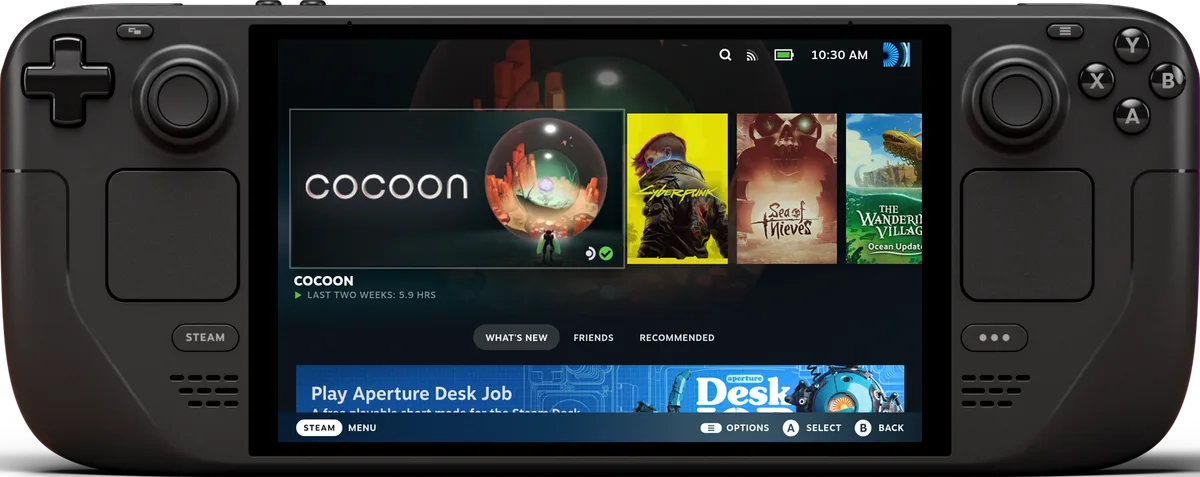
Decky Loader is a homebrew plugin launcher for the Steam Deck. Once it’s installed, a plug icon in the Quick Access menu opens a store of plugins that restyle menus, change system sounds, adjust screen saturation or tweak other system settings, per the project’s README. The install is a six-step Desktop Mode routine, and everything after that happens in Game Mode. Valve doesn’t support it, and the steps below come from the project’s own pages and a GamingOnLinux guide rather than our own run of the installer. The latest release on GitHub when we checked on November 6, 2026 was v3.3.1, dated October 27.
Before you install
- It’s unofficial. GamingOnLinux says the plugin system isn’t supported by Valve and can be unstable. Different developers maintain different plugins. The Decky website puts device security on you and says to configure plugins with care, since a badly set up one can cause lag even though the loader itself is light.
- Warranty. The Decky website says some users reported warranty returns after telling support they used it, and that results vary. Valve’s stance isn’t in the sources we opened.
- Which devices. The website describes it as intended for the SteamOS that ships on the Steam Deck. HoloISO and other third-party SteamOS distributions aren’t officially supported, and the site says it has no plans to support other operating systems such as Windows or Mac.
- Input. The README suggests having a mouse and keyboard ready, connected over USB-C or Bluetooth. Failing that, the right trackpad works as a mouse, and Steam plus X opens the on-screen keyboard.
Install Decky Loader
These are the README’s steps:
- Press the Steam button, open the Power menu and choose Switch to Desktop.
- In a browser, open the Decky Loader GitHub page and download the installer file,
decky_installer.desktop. Firefox saves it asdecky_installer.desktop.download; rename it before running it. - Drag the file to the desktop and double-click it.
- Type your admin password, or let Decky set the password
Decky!temporarily. It’s removed after the installer finishes. - Choose Latest Release, which the README calls the stable version intended for most users. Latest Pre-Release is aimed at plugin developers and, per the README, is unlikely to be fully stable.
- Open the Return to Gaming Mode shortcut on the desktop.
GamingOnLinux describes the same flow, with the extra detail that you pick “release” in the prompt and press OK when it finishes. The README also gives a one-line alternative for anyone comfortable in Konsole, a curl command that downloads and runs the release installer.
If it doesn’t start afterwards, the README points to two port conflicts. Syncthing can use port 8080, which Decky needs, so move Syncthing to something else (the README suggests 8384). Software using port 1337 or 8080 should have its port changed or be removed.
Find and install plugins
In Game Mode:
- Press the Quick Access button and go to the plug icon. That’s the Decky menu.
- Select the store icon to open the plugin store.
- Press Install on the plugin you want. You can pick an older version from a dropdown, but the README doesn’t recommend it.
The README names a few examples: CSS Loader for menu styling, AudioLoader for system sounds, vibrantDeck for screen saturation and PowerTools for other system settings. EmuDeck’s wiki describes plugins that go with its own setup, such as Power Tools and DeckyControls. We cover that setup in our EmuDeck guide. For performance without plugins, see Steam Deck performance settings.
Our own plugin walk-through, AnyAspectRatio, shows what a zip install looks like for a plugin that isn’t in the store. The README also mentions installing from a URL in Decky’s settings and recommends against doing that with untrusted sources.
Update, reload and remove plugins
Open the Decky menu and select the gear icon to update, uninstall and reload plugins, per the README. GamingOnLinux says a yellow circle shows when a plugin has an update; go into Decky’s settings, open Plugins on the left and update from there. Uninstalling a plugin removes only its plugin files, not other files it may have created, the README notes.
When Decky disappears or misbehaves
- After a SteamOS update: run the installer again and choose the stable release. If that doesn’t work, try the pre-release, then look through the project’s GitHub issues and file a new one if yours isn’t there, the README says.
- UI glitches: GamingOnLinux says to disable plugins first, since they’re the likely cause.
- Plugin store won’t load: the v3.3.1 release notes list a fix for handling store load failures, so update Decky if you’re on an older build. The notes don’t say how that fix behaves in practice.
- Controls stop responding in the menu: GamingOnLinux says to restart the Deck fully.
If the problem keeps going, our Steam Deck factory reset and restart guide covers the restart options.
Uninstall Decky Loader
The README’s steps: switch to Desktop as before, run the installer file again and select uninstall decky loader. There’s also a Konsole one-liner for removal. The README asks anyone leaving because of a problem to open an issue first, which could help you and other users.
What we couldn’t confirm
We didn’t find a source that says how many plugins the store holds or which ones are most used, so this guide doesn’t rank any. The Decky website doesn’t say whether the installer runs in Desktop or Game Mode; the README does, and this guide follows the README. Nothing we opened covers Decky on non-Deck SteamOS handhelds beyond the website’s statement that they aren’t officially supported.
Questions
Do I need an admin password to install Decky Loader?
No. The project's README says the install works without an admin password set. If you don't have one, the installer offers to set the password Decky! temporarily and removes it when it finishes.
Will a SteamOS update remove Decky?
It can. The README says Decky sometimes disappears on SteamOS updates and that running the installer again and picking the stable release usually brings it back. If that fails, try the pre-release, then check the project's open issues.
Is Decky Loader safe for my warranty?
Unknown. The Decky website says some users reported warranty returns after disclosing Decky use in support tickets, and that results may vary. We found no statement from Valve on the subject.
Does it work on a Windows handheld such as the ROG Ally?
Not according to the Decky website, which says it is only meant for the SteamOS installation that ships on the Steam Deck and that there are no plans to support other operating systems. Third-party SteamOS distributions aren't officially supported and may not work.
Official sources
- Decky Loader README: installation, uninstallation, plugins, common issues · GitHub (SteamDeckHomebrew) · Documentation
- Decky Loader website: install, requirements and warnings · Decky Loader · Documentation
- Decky Loader v3.3.1 release notes · GitHub (SteamDeckHomebrew) · Documentation · October 27, 2026
- EmuDeck Wiki: EmuDeck Application 101 (SteamOS) · EmuDeck · Documentation
Reviews and reports cited in this guide (1)
- How to set up Decky Loader on Steam Deck / SteamOS for easy plugins · GamingOnLinux · Review · February 4, 2025
Spotted a mistake or a step that no longer works? Tell us and we'll correct it.